Clip keeps source geometry inside the polygon mask; it does not copy the mask attributes.
Clip keeps source geometry inside a polygon mask
Processing → Clip trims an input layer using a polygon mask. The output keeps only the portions of the input features that fall inside the mask. The source can contain points, lines or polygons; the clip mask must be polygon geometry.
Clip is useful when a larger dataset must be limited to a study area, jurisdiction, hazard zone or other known boundary.
Keeps source geometry inside a polygon mask. Mask attributes are not copied to the output.
Keeps overlapping geometry and combines attributes from both inputs.
Subtracts overlay polygons from the input and keeps what remains outside them.
Choose the input and mask layers
Open Processing and choose Clip. Set the source layer you want to trim, then choose the polygon Clip mask. Each input has an explicit scope, so you can use All, Filtered or Selected features where the tool permits it.
Use a selected or filtered mask when only part of a larger boundary layer should participate. The map visibility state is not a substitute for Processing scope.
Check geometry and CRS before overlay
Overlay operations depend on the actual spatial relationship between the two inputs. If one layer is misplaced because its CRS was interpreted incorrectly, the clip result can be empty or geographically wrong even though both layers look structurally valid in isolation.
Review Assign and reproject a coordinate reference system when source coordinates are uncertain. If the mask or source is invalid, run Geometry Health before relying on the overlay.
Preview the clipped geometry
Use Preview on map before Run. The temporary result lets you inspect cut boundaries, removed features, partial lines or polygons and narrow edge artefacts while the source and mask remain available for visual comparison.
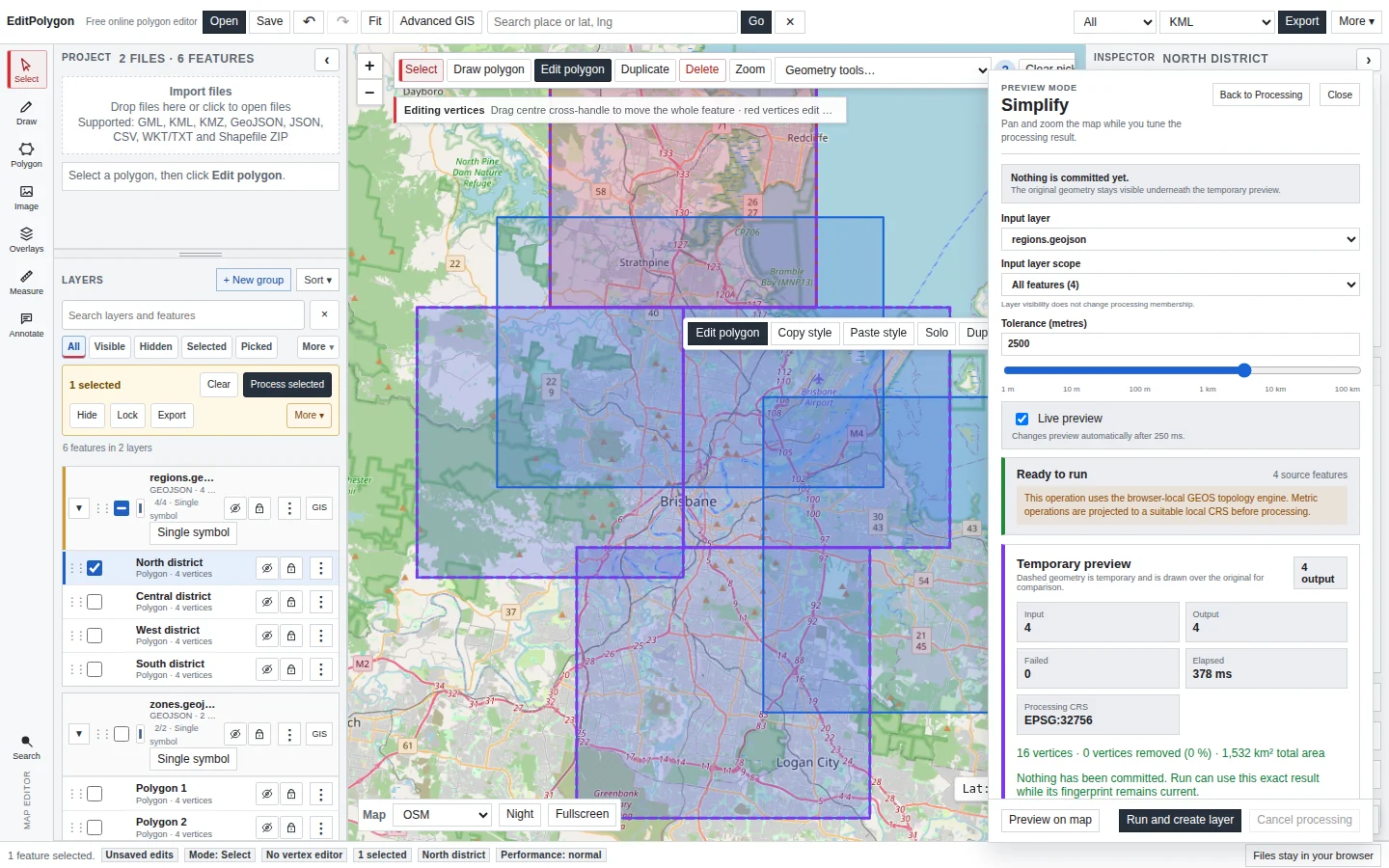
An empty preview is a diagnostic signal. Check whether the two scoped inputs actually overlap, whether the correct mask features are selected, and whether their coordinate interpretation is correct.
Know which attributes survive Clip
Clip preserves the input feature attributes. It does not copy fields from the mask. If you need attributes from both layers attached to the overlapping geometry, use Intersection instead.
If you only need to select records based on location without changing their geometry, Select by location may be the more appropriate operation.
Run and inspect the output layer
Choose Run and create layer when the preview is correct. Processing creates a derived project layer and retains the source for comparison. Inspect feature counts and cut geometry before using the result as a new authoritative dataset.
Export only after you have confirmed the intended scope and output. See Export data and save projects.
Common Clip questions
Can I clip points or lines with a polygon?
Yes. The input can be point, line or polygon geometry. The clip mask is polygon geometry.
Does the clip mask need to be one polygon?
No. A scoped polygon layer can contain multiple mask features. The important requirement is that the chosen mask input contains compatible polygon geometry.
Why are mask attributes missing from the result?
That is the Clip contract. Use Intersection when the output needs attributes from both the source and overlay layers.
Why is my result empty?
The most common checks are source/mask scope, actual spatial overlap, CRS interpretation and invalid geometry.
- The source layer is the dataset that should be trimmed.
- The Clip mask is the intended polygon layer and scope.
- Both inputs are spatially aligned and valid enough for overlay.
- The preview shows the expected retained portions.
- Clip is being used for geometry masking, not for copying mask attributes.
- The derived output is inspected before export or further analysis.