The same project model is used on mobile, but controls are rearranged for touch and smaller screens.
Mobile uses the same project model
EditPolygon's mobile layout is not a separate simplified data format. The same editable features, schemas, selections, project history and GIS capabilities are used; controls are rearranged into touch-friendly drawers and compact actions because the screen is smaller.
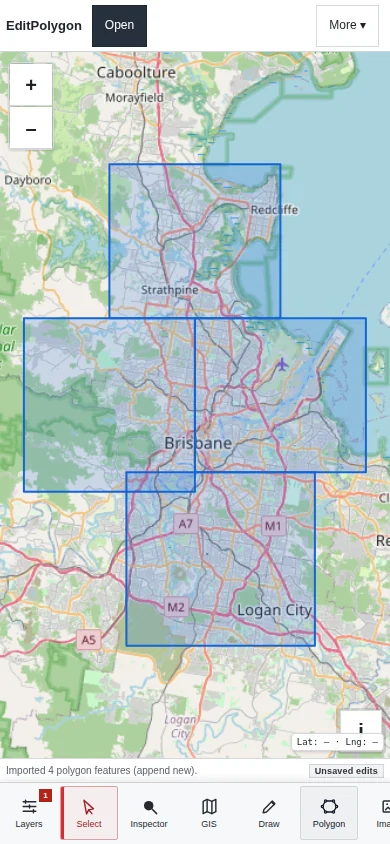
Expect controls to move, not disappear
On desktop, Project/Layers and the Inspector can remain visible alongside the map. On a phone, those surfaces may open as drawers, sheets or compact actions so the map retains usable space.
If a guide describes a desktop sidebar or floating panel, look for the equivalent named action/tab in the mobile interface rather than assuming the capability is unavailable.
Select features with touch deliberately
Tap selection is practical for clear, separated geometry. Dense overlapping polygons are harder to disambiguate with a finger than with a mouse, so use layer targeting, selection queries, zoom and the Layers interface when precise hit selection matters.
Select by attribute and Select by location can be more reliable than repeatedly tapping a dense dataset on a small screen.
Direct geometry editing on a small screen
Basic drawing and feature editing are available, but high-precision vertex work is inherently more difficult on a phone. Zoom closely before moving vertices and use snapping only when the intended target is unambiguous.
For long coordinate arrays, Geometry code, complex holes or many nearly coincident vertices, a larger screen and precise pointer are usually safer even though the underlying feature model is the same.
Advanced GIS and data workflows
Layer actions and the core GIS/data workflows are designed for mobile parity, but tables and multi-column configuration naturally require more scrolling. For complex schema editing, large attribute tables or side-by-side comparison, desktop provides more working space.
Do not interpret a compact mobile presentation as a different Processing contract: All/Filtered/Selected scopes, preview semantics and authoritative results remain the same.
Processing on mobile
Processing can be useful on mobile when the parameters are simple and the source data is manageable. Map-first Preview Mode is particularly helpful because the temporary result can be inspected while the compact processing controller remains available.
Large operations still consume the current device's CPU and memory. A phone may reach practical resource limits sooner than a desktop computer even when both browsers support the same algorithm.
Opening and saving files
Mobile file pickers and download locations are controlled partly by the operating system/browser. Keep multipart GIS datasets packaged as described in Open and import GIS data, and confirm where downloaded .epz or export files are stored on the device.
If organisational mobile-data controls encrypt files when they leave a managed application, obtain an approved unencrypted copy before expecting a browser GIS parser to read it.
When desktop is preferable
Prefer a desktop/laptop for:
- Dense vertex-by-vertex editing.
- Large attribute tables and schema migrations.
- Complex multi-layer spatial analysis.
- Large or very high-vertex datasets.
- Detailed visual QA across several layers.
Mobile is well suited to viewing a project, checking features, making simpler edits, running focused queries and completing lightweight Processing when the data size permits it.
- The correct drawer/panel is open before assuming a desktop control is missing.
- Dense geometry is zoomed sufficiently for touch selection/editing.
- Query-based selection is used when tapping is ambiguous.
- Large Processing jobs are appropriate for the device resources.
- Important project/export files are stored somewhere you can recover later.
- Precision-critical work moves to a larger-screen workflow when touch interaction is unsafe.
Common questions
Does mobile use a different project format?
No. Mobile and desktop use the same project model; the interface is rearranged into touch-friendly drawers and controls.
Can I edit detailed geometry on a phone?
Yes, but high-vertex or precision-heavy editing can be less practical on a small touch screen even though the underlying editing model is the same.