Split remains a direct feature-editing workflow rather than a layer-wide Processing operation.
Split remains a direct feature-editing workflow
Splitting one active polygon with a line you draw on the map is intentionally different from a layer-wide Processing algorithm. The user-defined cutting line is an interactive geometry edit, so the workflow remains under the selected feature's Geometry tools… menu.
Use Processing for repeatable operations such as Dissolve, Clip, Difference or Simplify. Use Split when you are deliberately drawing the new boundary for one active polygon.
Prepare the source polygon
Select the intended polygon and confirm its name, geometry type, holes and location in the Inspector. Save an .epz checkpoint or keep the original source when the split is consequential.
Hide unrelated map context if it makes the cutting line difficult to place, but remember that visibility changes presentation only.
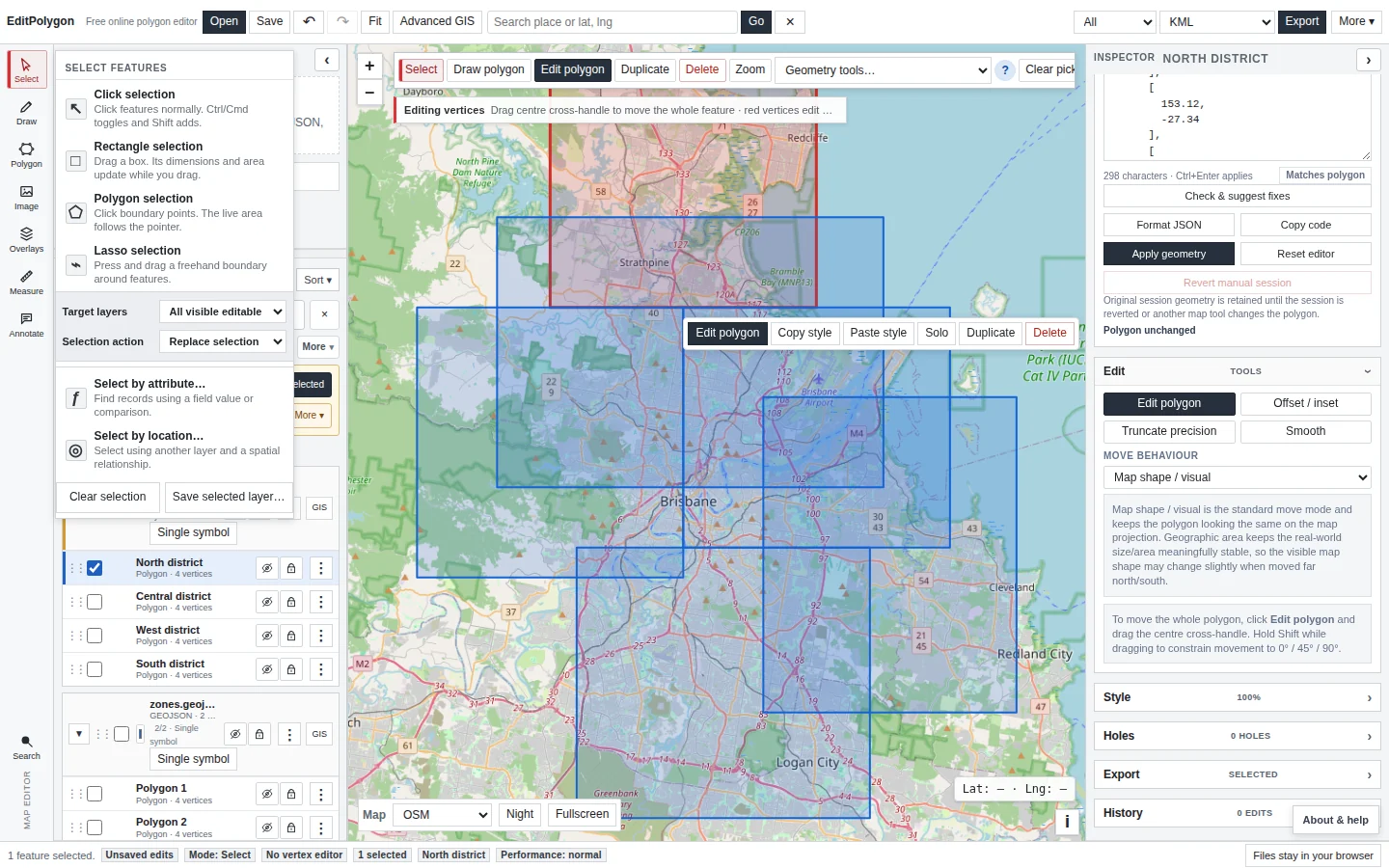
Open Split active by drawn line
With the polygon active, choose Geometry tools… → Split active by drawn line. The editor changes into the split drawing interaction and shows the controls required to finish or cancel the line.
Draw a reliable cutting line
- Start outside the polygon.
Give the line a clear approach to the first boundary crossing.
- Cross the intended interior.
Add intermediate points only when the new boundary genuinely needs bends.
- Finish outside the polygon on the other side.
A line that only touches the exterior may not create a split.
- Finish the draw interaction.
Review the preview/result before continuing with other edits.
A reliable line normally crosses the exterior boundary at least twice, does not run exactly along an existing edge and avoids unnecessary loops/self-crossings.
Very close/tangential crossings can create tiny slivers or ambiguous parts. Undo and redraw at a closer zoom when the result is difficult to interpret.
Review cut width and scale
The split workflow may use a narrow buffered cutting line internally to produce a robust separation. Keep any cut-width setting conservative relative to the geometry scale. A width that is too large creates a visible corridor rather than a minimal new boundary.
Zoom in enough to distinguish a real output gap from normal stroke/display width.
Polygons with holes and multipart geometry
A cutting line can intersect a hole or only one part of a MultiPolygon. Inspect each result rather than assuming every source ring will be distributed as expected.
Use Hole manager afterwards when the split changes the relationship between exterior rings and interior holes. Do not fill a hole automatically merely because its new placement is surprising.
Review and name the result
Inspect every new part on the map. Check:
- The new boundary follows the intended cutting line.
- No tiny sliver was created near an almost-tangent crossing.
- Holes belong to the correct output parts.
- Feature names/properties still make sense now that one source feature has become several pieces.
Use Undo immediately when the result is wrong; redraw the cut rather than trying to manually repair a fundamentally misplaced new boundary.
Run Geometry Health after a difficult split
Check important split outputs for collapsed components, invalid rings, self-intersections and hole-placement problems. A technically valid result should still be inspected against the intended operational boundary.
Export the intended parts
Use selection and the top export scope to download only the result parts you actually need. Check that the original unsplit feature is not also included unless retaining both versions is intentional.
Troubleshooting
The drawn line does not split the polygon
Make it clearly enter and exit the polygon, extend both ends beyond the exterior boundary and avoid tracing an existing edge.
Only one part of a MultiPolygon changed
The line crossed only that part. Split separate parts deliberately or draw through each intended component.
The split creates a visible gap
Review the cut width and map scale. Reduce the width where available and retry.
I expected a layer-wide split tool in Processing
The current drawn-line split is intentionally feature-specific because the cut itself is an interactive user-drawn geometry. Processing contains repeatable layer operations that do not require drawing a unique cut for each feature.
- The correct polygon is active.
- The line starts and finishes clearly outside the polygon.
- The line crosses the intended interior without unnecessary loops.
- Cut width is appropriate to the source scale.
- All output parts and holes were inspected.
- Properties/names still identify the result correctly.
- Important output was validated before export.